Inspection App
The Inspection app will have to be downloaded and set up on the device used for inspection.
Once installed the user will be able to open the app and log in.
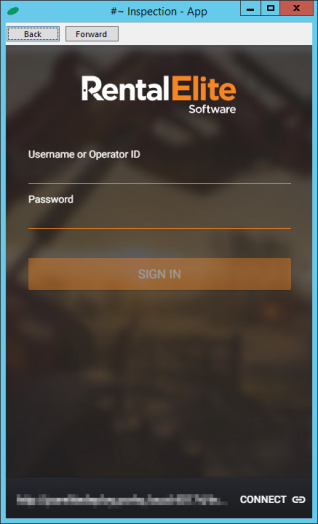
Once signed in, “My Dashboard” is displayed. If jobs and tasks have been assigned, the number of pending jobs will be displayed.
If a job or task has already been assigned to you, it will show in the number pending. You can click on that number and it will pull up the pending jobs.

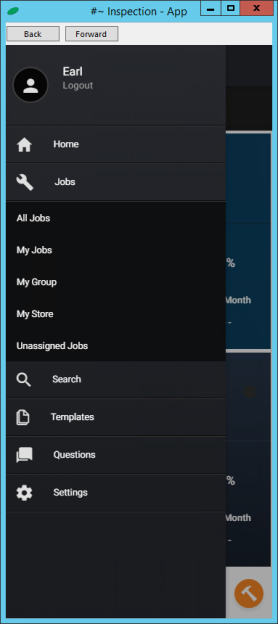
If you are in the on screen app through Item Availability, click on the three horizontal lines on the top left and the menu will open, as shown below.
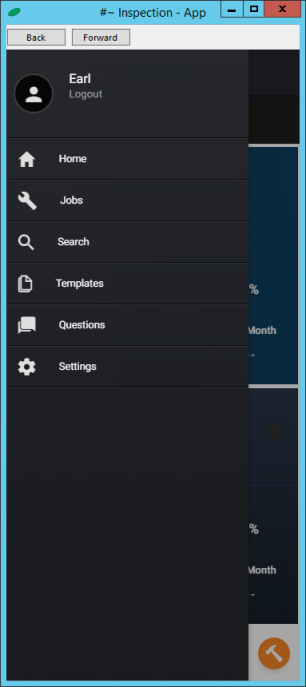
If you have access, you can select “All Jobs” to see all jobs, “My Jobs” to see jobs assigned to you, “My Group” to see jobs assigned to the group you have been assigned to, “My Store” to see jobs assigned to your store and “Unassigned Jobs” to see jobs that have not been assigned to an inspector.
A list of all jobs will be displayed.
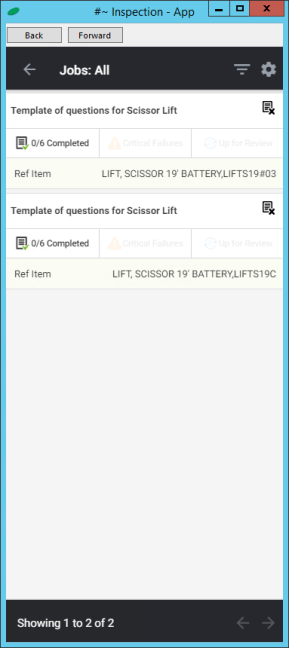
By clicking the template name it expands the job to show additional details.
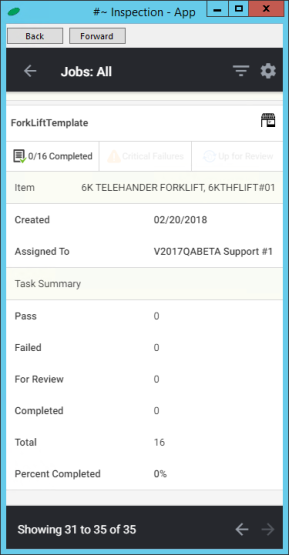
By clicking in the Task Summary section, you can view the Inspection Job.
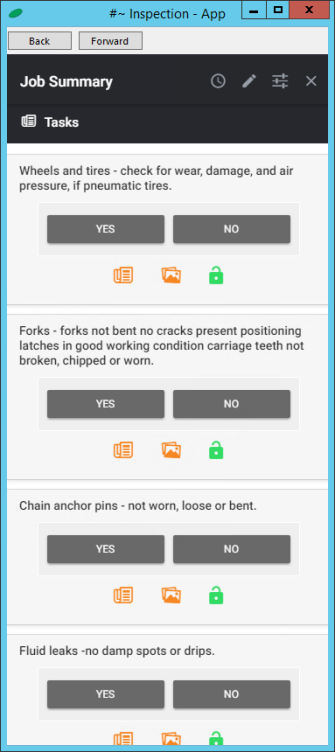
You have 4 icons across the top of the screen when in an Inspection Job
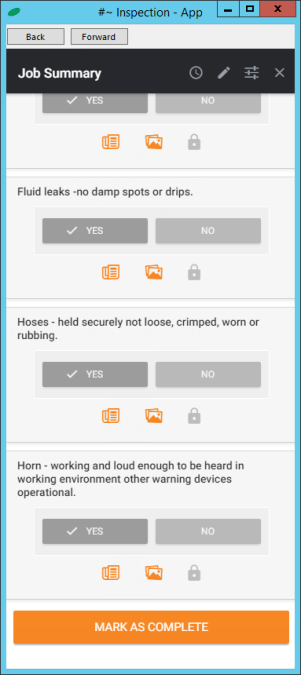
Clock - allows you mark you time in and out for tracking time worked.
Pencil - is for editing the Inspection Job.
Sliders - is to configure the job you can assign it, Create a Request Order or Delete the job.
X - which closes this screen and takes you back to your previous screen.
Creating Inspections Jobs
The first method is in File Maintenance>Item Record> Item Maintenance Schedules. Here you can assign the templates to items. If you have header records, all of the serialized items will use the same general template. You can set the inspection schedule on the header and it will give you the option of assigning to the serialized items automatically and add it automatically to any items added subsequently.
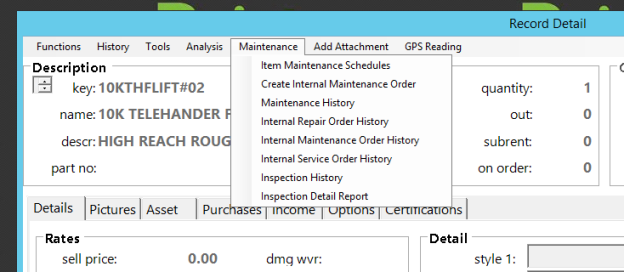
In the schedule list you can add a description, frequency, appropriate interval, and the corresponding job template for the inspection

Once this is set up we can proceed with the inspection process.
The inspection job is created, when an item that requires inspection is on a contract that closed. A job will be created and a notification will display.
You can also right click on the scheduled maintenance and click Schedule Inspection Job.

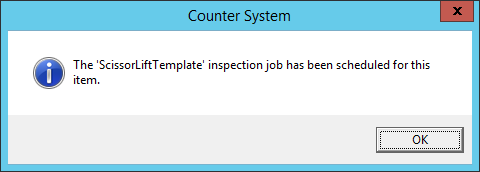
In either case, you will get the message below. This is simply information for the counter person.
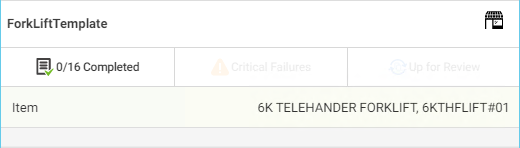
Inspection jobs created from the Maintenance Schedules will list the Item Name and the Item Key.
The second method is from a contract. When you modify a contract, you will see the Actions Menu.
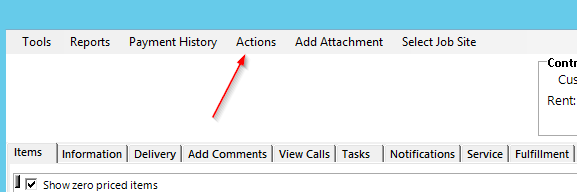
In the Actions menu select Schedule Inspection.

Select the Inspection Template for the job you would like to create.

Inspection Jobs created in this fashion will display the customers name on the job.

Creating Repair Orders
You can create a Repair Order from any Inspection Job by clicking the sliders icon, then selecting Create Request order.

This will allow you to pick what type of order you need to create. Maintenance, Repairs or Service. When you select a type, it then lets you pick the customers associated with those types. When you click submit at the bottom, it will create the repair contract. The contract number associated with that order is listed in the details of the Inspection Job.

Creating Templates and Questions
In order to set up the templates and questions, you will have to sign in to the inspection Manager.
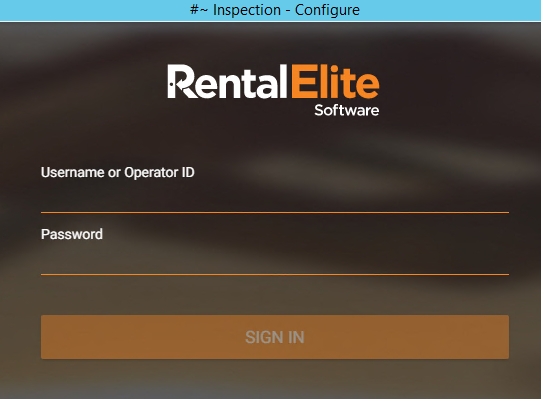
Once logged in you will see the screen below.

The three horizontal lines in the upper left hand corner is your menu icon. Select it and you will see:
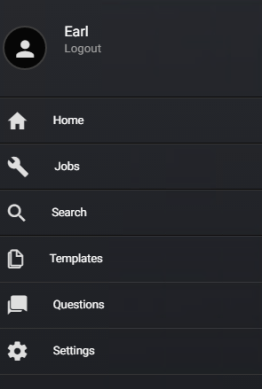
You will need to create templates and the template questions that are related to the Inspections for the equipment.
The templates would normally be general by equipment type (Scissor Lifts as a group all having the same template with same questions ) but could be more specific to a model or even individual units if there are very specific requirements for those units.
The questions created could be used in multiple templates ( Is Equipment Clean?) or specific to that model or unit ( Is the reverse signal functioning when you stand on one foot and wave your left hand in the air?)
Reviewing what the manufacturer recommends may be a good starting point.
If you select Template you should see a list of Templates that are set up as examples

Once you have a bunch of templates created you can enter a key word in the search to find templates that you are searching for.
The orange circle with the + in it will bring up a new template format to create a new template.
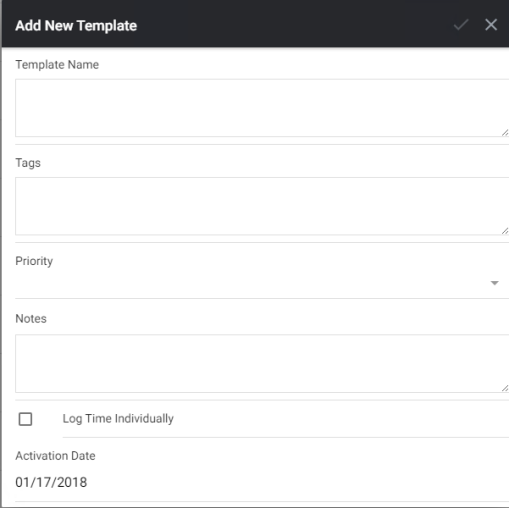
We advise keeping the template name brief.
The tags are search terms to find the template in the future. This may be model numbers, alternative names or spellings.
Priority lets you set the importance of this inspection. The higher the priority the higher the inspector will see it in the list when looking at his app. High demand items that need to be done quickly would be high, low demand items might be lower.
Notes are any elaborations you may want to add that explains or defines this template.
If “Log Time Individually” box is checked the job will be time stamped when it is created and completed.
Or you can click on an existing format to edit
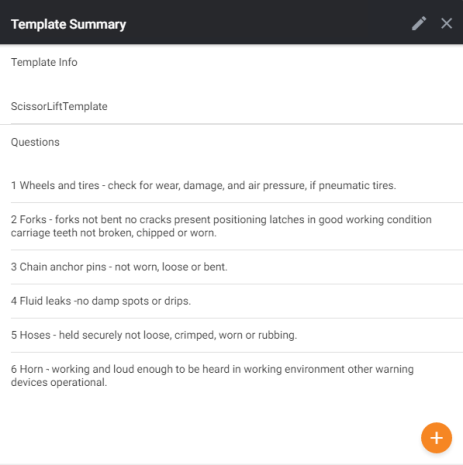
Pencil - shaped icon by the X on the black bar will let you edit the template.
Orange + - circle will let you add more questions. You can choose from existing questions or create a new one.
Clicking slowly on a question will let you select, deselect, reorder and remove unwanted questions
Double clicking on a question will let you edit the question. Remember, this question may be used on multiple templates.
To create questions before going to the template set up select the Question option. A list of the first twenty existing questions will appear. The arrows in the bottom right will take you forward and backward through the list. Or you can search a keyword to pull up any question matches that might already exist. The Orange + circle will pull up the question form to create a new question or you can select an existing question and change some aspect of it.

Fill in the appropriate fields
Priority sets the importance of the question.
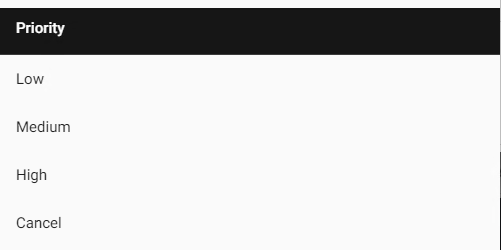
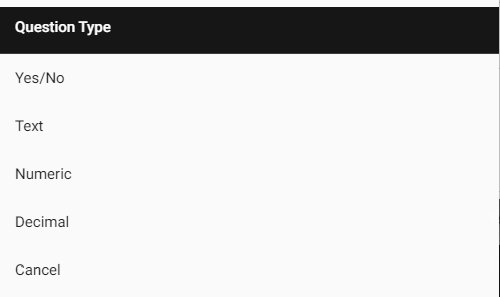
Question Type sets the type of answer expected.
Once the Template have been created and the questions assigned, you will move to creating inspection jobs.
Searching for Equipment
Equipment can also be viewed from within the inspection app. This allows you to see any outstanding, upcoming jobs or its' inspection history. Equipment can be searched for via key or item number. On the list, items can be identified by item number, part number, and serial number.
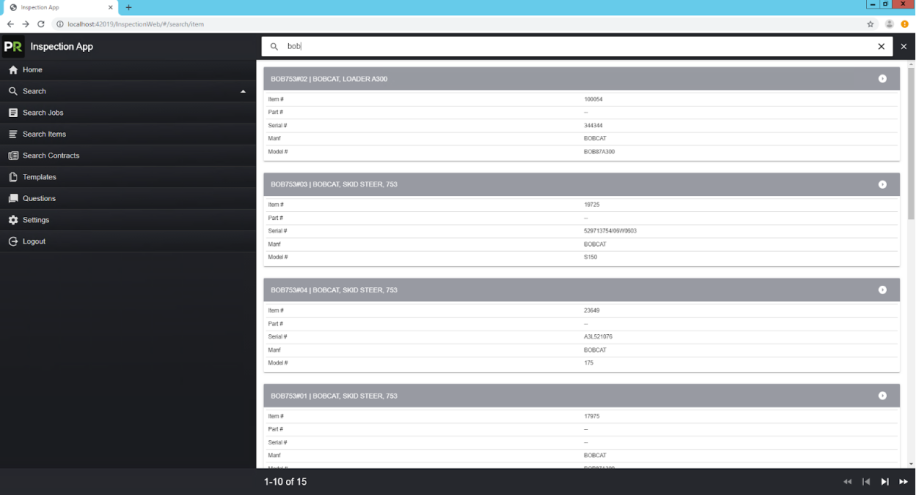
Select one of the units by clicking the arrow to the right of the name to display details.